

Connecting Java Edition to SQ-STF
Minecraft Java Edition runs on laptop and desktop personal computers running Windows, MacOS, and nearly any type of Linux (Ubuntu, Mint, etc.). Java Edition is the original version of MC and has an amazing international development community that creates and supports extensive modding.
[rsc_restrict_content allowed_to=”logged_in”]
STEP 1: Get Minecraft
If you don’t have Minecraft, you’ll have to get it. The Java Edition program is free to download. However, you’ll have to buy a Java Edition account to play it. You can find a download for your operating system on the Minecraft site after you create your account.
Ubuntu Users: We recommend installing the mc-launcher snap available in the Ubuntu Software app or try this Lifewire article.
Once Minecraft is installed, find it and open it. When the launcher comes up for the first time, you’ll have to log in. Also, the launcher may need to download game updates before you can play either before or after you click the big “Play” button on the launcher.
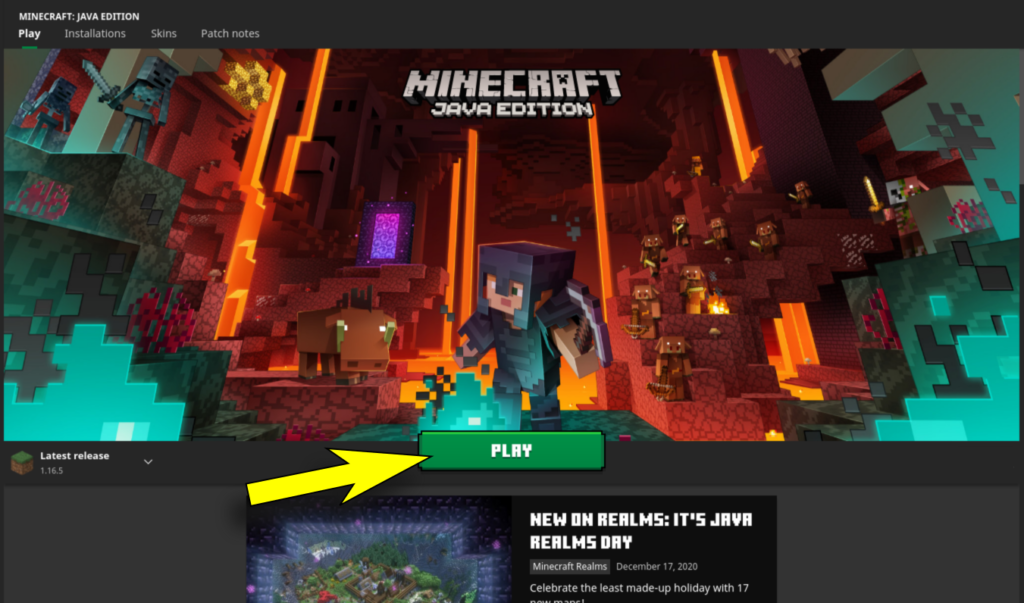
Note: You can connect to our server running Spigot/PaperMC using any release that supports vanilla Minecraft. Your releases are found in the drop-down menu to the left of the play button. In most cases, you’ll want to use “Latest Release”. However, if you have Optifine installed with shaders, you may want to connect with this. Unfortunately, you cannot connect with Forge or Fabric releases.
STEP 2: Open Multiplayer Mode
After you click “Play” the launcher will disappear and eventually a loading screen will appear. Then you will see the game mode selection screen like this:
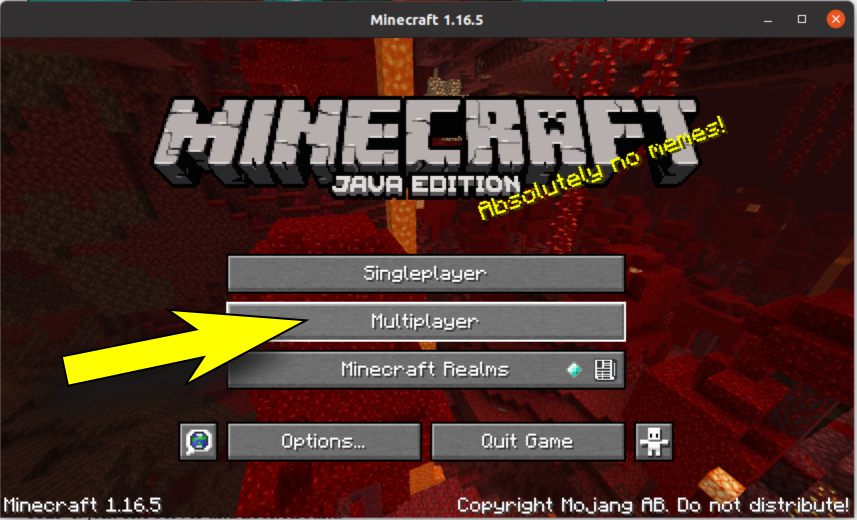
Click “Multiplayer”. You should see the “Play Multiplayer” screen and a message: “Scanning for games on your local network”.
STEP 3: Add The SparkQuest STF Server
Click the “Add Server” button on the lower right.
Enter the following details:
Server Name: SparkQuest STF
Server Address: 167.114.216.254:25617
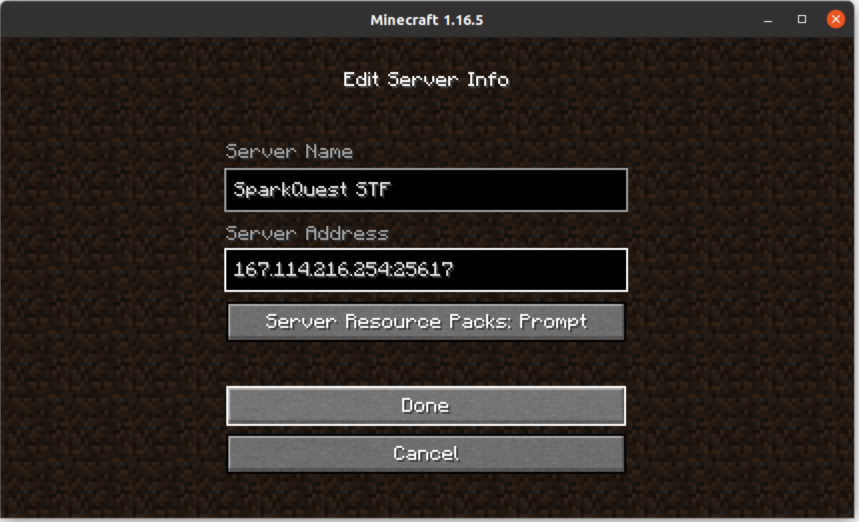
Click “Done”.
STEP 4: Join The Server and Look Around
You should now see the SparkQuest STF server listed on the “Play Multiplayer” screen. Place your cursor over the icon beside the SparkQuest STF server and a play symbol will appear. Click to join the server.
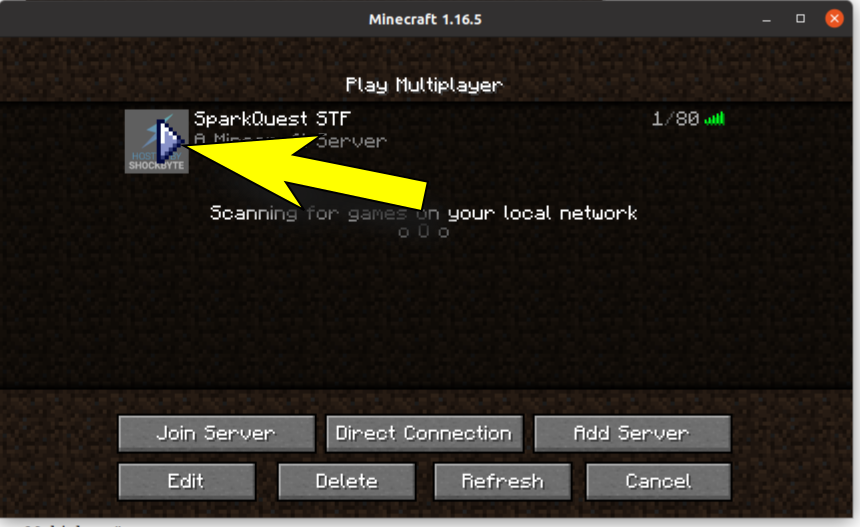
You should spawn into the server on the Welcome Fountain which is the world spawn and see Judi, the Special Hostess of New City JCDP waiting for you. If Judi is not there, she’s probably showing someone else around. Feel free to wait for her to come back or go and look around yourself.
If you haven’t already, you might want to use the Welcome to New City Course to figure out some of the basics of life on our server.
An important note: you’ll notice our server is on survival mode so you can take damage and die from falls, mod attacks, and various other perils. The New City area is a WorldGuard region protected from mob spawning, but outside the city (what we call the Outlands), things get pretty wild at night!
Coming Soon! Add the SparkQuest Resource Pack.
We have a SparkQuest Resource Pack under development with will include skins and textures for better gameplay visuals. Stay tuned for an announcement when it is ready.
[/rsc_restrict_content]